Excel Web Query Error – Cannot Locate the Internet Server or Proxy Server
Excel Web Query Error. Unable to Open Website or Embedded Link. Cannot Locate the Internet Server or Proxy Server. How to Solve Refresh Data Error?
After cleanly formatting your computer, you restored your backups of your old files.
You may get an Excel error stating “Unable to open https://examplesite.com/. Cannot locate the Internet server or proxy server.“
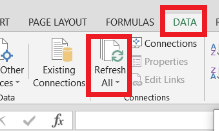
However, you see that the data connection (Web Query) in an Excel file is not working and you receive a connection error when you press to “Refresh All” button similar to the one below.
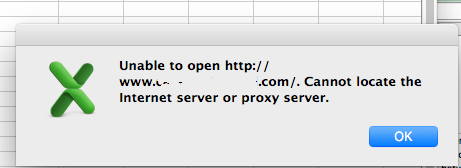
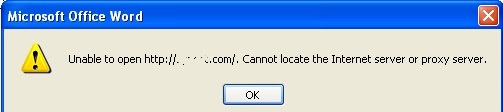
The Excel program may have problems opening the links you have embedded in your file.
There may be many different reasons for this problem, one of which may be that the SSL/TLS options in the internet settings are not selected.
When you click on the Internet Options option under Control Panel, you will go to the Advanced tab in the window that will open and the Security section will be found on the scrolling screen.
If there are no check marks in the SSL/TLS options on this screen, they can be selected as shown in the image below, saved and exited.

The connection links in the Excel file are now operable. To update the data, the Refresh All button is pressed to retrieve updated data from the internet.