How to Create a Stock Market Tracker in LibreOffice Calc: Import Stock Prices from the Internet
Tracking stock market investments, monitoring share prices, and comparing the performance of different companies are important tasks for many investors. Fortunately, you do not need expensive office software or a dedicated financial application to build your own stock market tracking system.
LibreOffice Calc is a free, open-source spreadsheet application that allows you to organize financial data, import information from supported internet sources, calculate price changes, and create customized stock tracking tables.
In this tutorial, we will use LibreOffice Calc to build a simple stock market tracker based on companies included in the Nasdaq-100 index. We will import stock market data from the Slickcharts website, store the imported information on a separate worksheet, and display selected stocks on a dedicated dashboard.
By the end of this guide, you will understand how to import web data into LibreOffice Calc, reference cells across worksheets, use lookup formulas, format financial data, and create a personal stock tracking spreadsheet.
1. Why Use LibreOffice Calc for Stock Market Tracking?
LibreOffice Calc is a spreadsheet application similar to Microsoft Excel. It supports formulas, multiple worksheets, data formatting, sorting, filtering, charts, and many other features useful for analyzing financial information.
For stock market enthusiasts, Calc can be used to create a customized dashboard containing information such as:
- Stock symbols and company names
- Current or latest reported stock prices
- Daily price changes
- Daily percentage changes
- Index weights
- Data update timestamps
- Personal notes and target prices
Instead of manually checking each stock on a financial website, you can organize the information in one spreadsheet and display only the stocks you want to monitor.
One particularly useful approach is to separate imported market data from the main tracking dashboard. This makes the spreadsheet easier to maintain and allows you to track selected stocks without modifying the original data table.
2. Choose a Website for Stock Market Data
Before building a stock tracking spreadsheet, you need a website that provides stock prices and company information.
For US stock market data, one useful starting point is Slickcharts.
Slickcharts Nasdaq-100 Constituents:
https://www.slickcharts.com/nasdaq100
The page displays a table containing companies included in the Nasdaq-100 index. Depending on the available data, the table may include the following columns:
- Company: Company name
- Symbol: Stock ticker symbol
- Weight: Company’s weight in the index
- Price: Stock price
- Chg: Price change
- % Chg: Percentage price change
This structure is convenient because several pieces of information are available in a single table.
For example, you can find stocks such as Apple (AAPL), Microsoft (MSFT), NVIDIA (NVDA), Amazon (AMZN), and Tesla (TSLA).
Keep in mind that the Nasdaq-100 is an index rather than a list of every stock traded in the United States. Its constituents can change over time, and some companies have multiple share classes.
Also, a displayed stock price should not automatically be assumed to be real-time. Data availability, update frequency, and possible delays depend on the source.
3. Create a New LibreOffice Calc Spreadsheet
Open LibreOffice Calc and create a new spreadsheet.
For this tutorial, we will use two worksheets:
- Data: Stores the stock market data imported from the internet.
- Stock Tracker: Displays the stocks you want to monitor.
Rename the first worksheet to Stock Tracker and the second worksheet to Data, or create and rename the worksheets as needed.
You can rename a worksheet by right-clicking its sheet tab and selecting the rename option.
Using separate worksheets makes the spreadsheet easier to maintain. The Data worksheet contains the imported information, while the Stock Tracker worksheet presents a simplified view for everyday use.
4. Import Stock Market Data from Slickcharts
The next step is to import the Nasdaq-100 table into LibreOffice Calc.
Follow these steps:
1. Open LibreOffice Calc and select the Data worksheet.
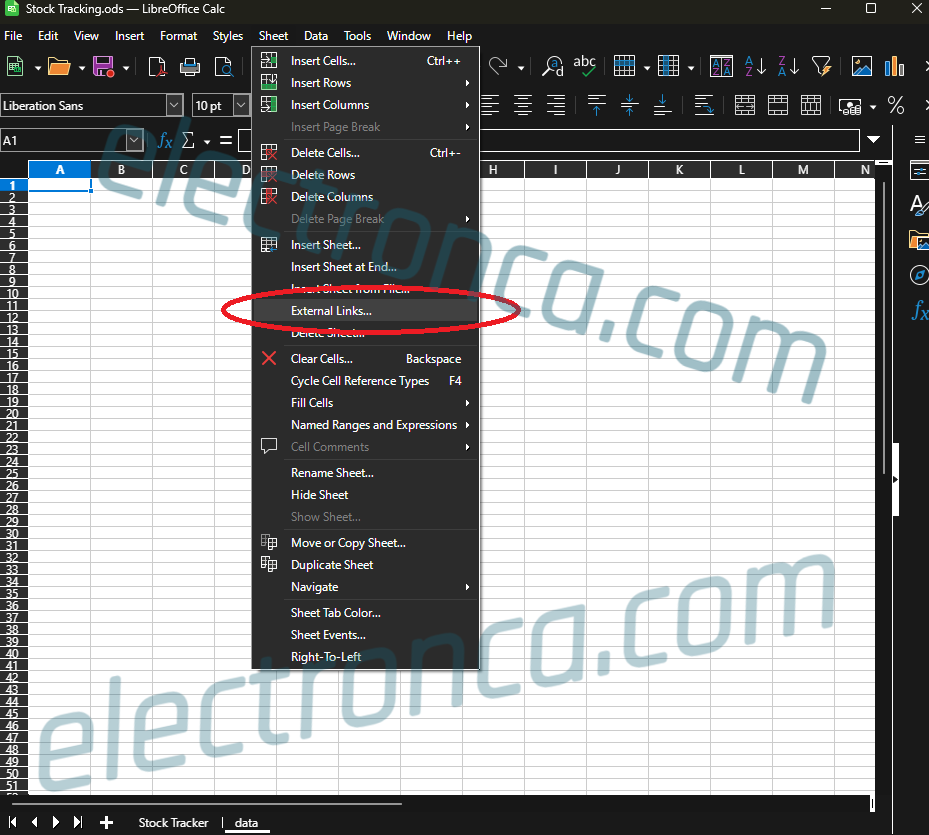
2. Open the Sheet menu.
3. Look for the External Links or equivalent external-data command available in your LibreOffice version.
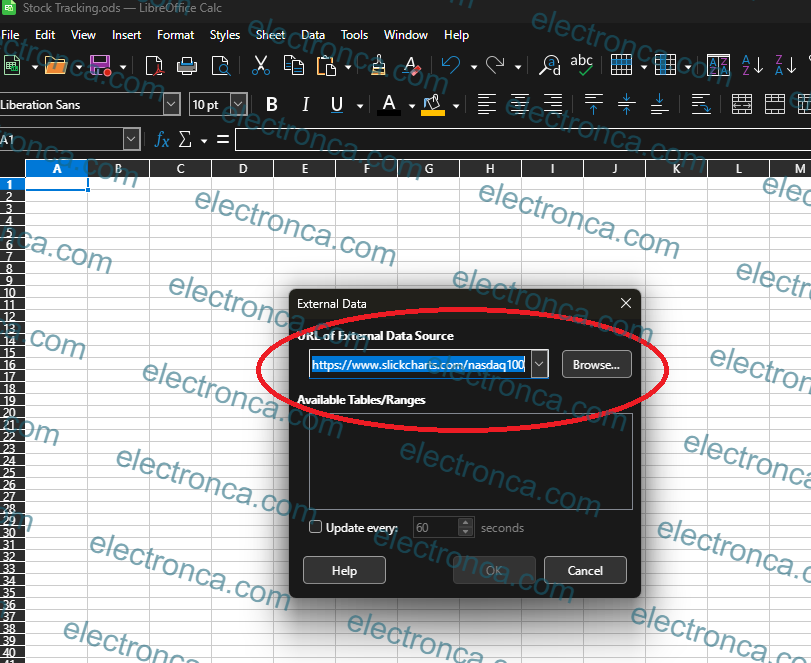
4. Enter the following URL in the source address field: https://www.slickcharts.com/nasdaq100
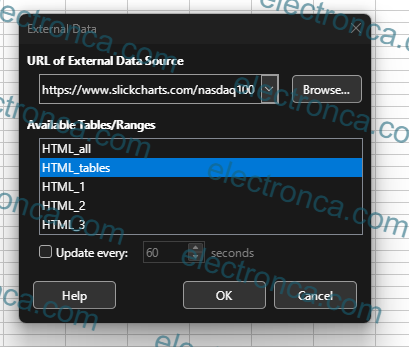
5. If Calc can read the page, select the appropriate HTML table from the available import options.
6. Specify where the imported data should be placed.
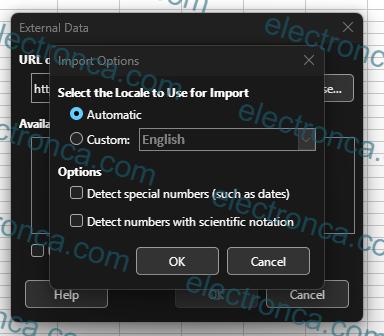
7. Complete the import operation.
Menu names and available options may vary between LibreOffice versions and operating systems.
If the import succeeds, your Data worksheet should contain a table similar to the following:
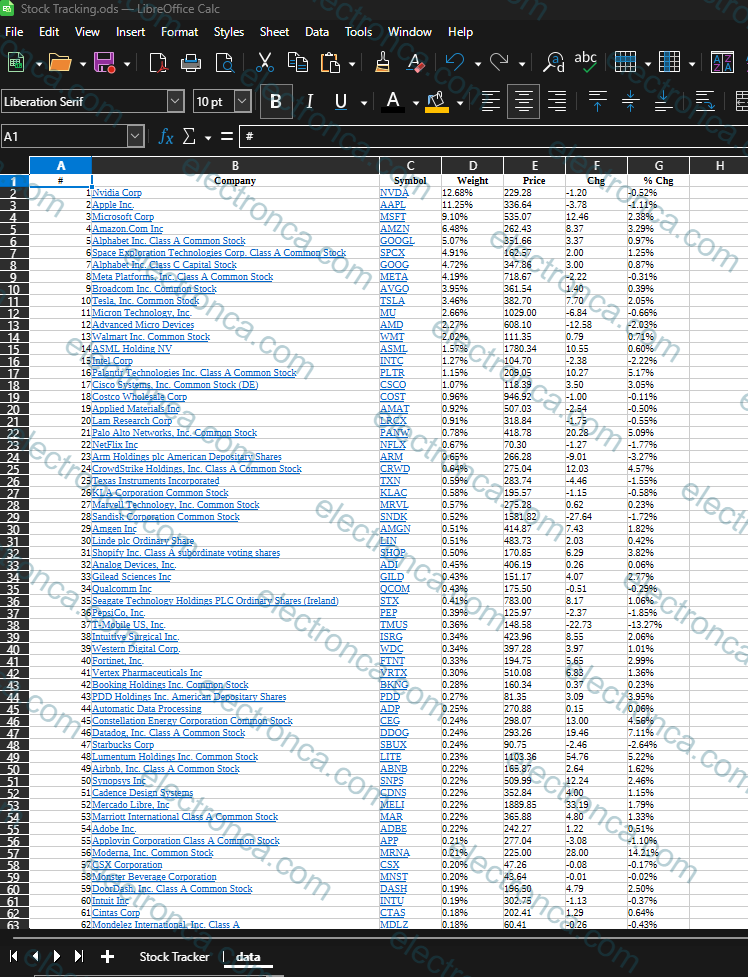
*The values above are illustrative examples, not verified current market prices.
What if the website data cannot be imported?
Not every website provides data that LibreOffice can import directly. Some pages load prices dynamically using JavaScript, require additional authentication, or restrict automated access.
If the table does not appear in the import window, you may need to use another supported data source or a financial data API.
The method described here depends on the website continuing to provide data in a format that LibreOffice can read.
5. Create a Stock Tracking Dashboard
Once the internet data has been imported, create a simple dashboard on the Stock Tracker worksheet.
6. Retrieve Stock Prices Using Lookup Formulas
LibreOffice Calc allows you to retrieve values from another worksheet using formulas.
Retrieve the company name
In cell C2 of the Stock Tracker worksheet, enter:
=VLOOKUP(A2;$data.C2:G102;3)
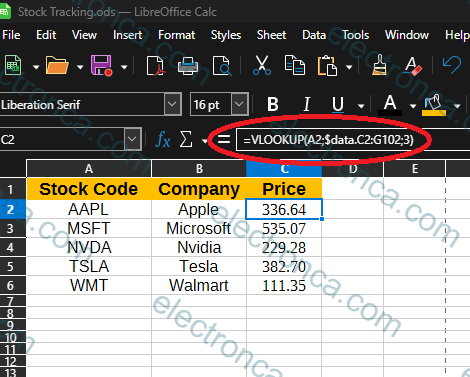
For example, if A2 contains AAPL, the formula returns the corresponding company name from data sheet.
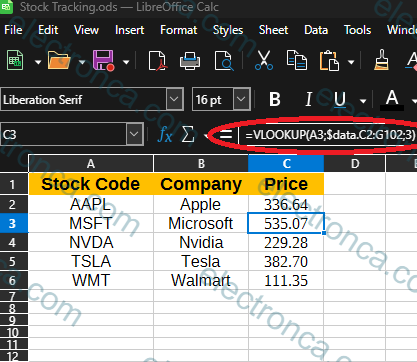
7. Refresh the Imported Stock Data
To refresh your data, inspect the external connection’s properties and refresh options. Depending on the connection type and LibreOffice version, you may be able to refresh the data manually or configure a refresh interval.
Once the imported values change, the formulas on the Stock Tracker worksheet can display the new values automatically.
For example, if the imported price of NVIDIA changes, the formula associated with NVDA will display the new value after the external data has been refreshed.
Remember that a market being closed, a delayed data feed, or a source update schedule can affect when prices change.
8. Expand Your Spreadsheet into a Personal Portfolio Tracker
Once the basic tracker is working, you can add more advanced features.
For example, you can:
- Track stocks from different indices on separate worksheets.
- Compare Nasdaq-100 stocks with S&P 500 stocks.
- Add your purchase price and number of shares.
- Calculate the current market value of your holdings.
- Estimate unrealized profit or loss.
- Add target prices and personal notes.
- Create charts comparing stock performance.
- Store historical prices for later analysis.
If you want to track your own portfolio, add columns for the number of shares held and the purchase price.
9. Common Problems and Troubleshooting
The formula returns #N/A
The lookup formula may not find the ticker symbol in the specified range. Check the spelling of the symbol and verify that the search range covers the imported data.
Stock prices do not appear
The source table may have been imported with different column positions. Confirm that the formula searches the actual symbol column and returns the actual price column.
The imported data does not refresh
The spreadsheet formulas may be correct even though the external connection has not retrieved new information. Check the connection settings and refresh the source data.
Prices appear as text
Some sources return prices with currency symbols, unusual separators, or formatting that prevents Calc from treating them as numbers. Check the imported cell format before performing calculations.
Conclusion: Build Your Own Stock Market Tracker with LibreOffice Calc
LibreOffice Calc is a flexible, free tool for anyone who wants to organize stock market data and create a personal tracking spreadsheet.
By importing data from a supported website, storing it on a separate worksheet, and using lookup formulas to retrieve selected stocks, you can build a dashboard tailored to your needs.
In this tutorial, we used the Slickcharts Nasdaq-100 table to demonstrate how to import stock data, organize a two-worksheet workbook, retrieve stock prices by ticker symbol, and format a tracking dashboard.
The same approach can be adapted to other stock lists and data providers, provided that the source offers information in a format that can be imported into LibreOffice Calc.
The key distinction is that displaying imported prices and retrieving fresh prices are two different operations. The ability to refresh data automatically depends on the data source, the connection method, and the provider’s access conditions.
Start with a small selection of stocks, verify that the formulas return the correct values, and check when the source data was last updated before relying on it.
This article is for educational and informational purposes only and does not constitute investment advice. Stock prices may be delayed or inaccurate. Always verify data freshness and accuracy before making investment decisions.